Connect a Postman API key to check your work
You do each step in Postman, then LiftOff uses your key to look at your workspace and confirm it's done. Connect once and it works for every module. Your key is saved in this browser and is only used to check your work in Postman.
Create a Blank Workspace
A dedicated workspace keeps your Artemis mission resources organized and separate from other work.
- Open the Postman desktop app. If you don't have it yet, download Postman and sign in — if you're already signed in, you're good to go.
- Click Workspaces in the top navigation → Create.
- On the Create your workspace form, in Workspace name enter Artemis II - [your name] (e.g. Artemis II - Alex).
- For Who can access, open the dropdown and choose Only you and invited people — Internal is already selected.
- Leave the template on Blank workspace (already selected), then click Create Workspace.
Import the OpenAPI Spec
- Click the Import button on the top right of the left navigation bar
- Paste this URL:
https://raw.githubusercontent.com/- Press Enter to fetch the spec
- You will see a prompt. Select the 'OpenAPI 3.1 Specification with a Postman Collection' option and click Import
Postman auto-generates a collection from the spec with all the Artemis API endpoints ready to use.
Create an Environment
An environment holds variables you reuse across requests. Create artemis.local with baseUrl, apiKey, and logId — either with Agent Mode or by hand.
Option A — Agent Mode
- Open Agent Mode from the button in the bottom-right of the sidebar
- Enter this prompt:
Create an environment called artemis.local with variables - baseUrl, apiKey and logId.
- Verify the environment artemis.local appears with all three variables
Option B — Manual
- In the left sidebar, click Environments
- Click + (or Environment) and name it:
- In the variables table, add three variables:
baseUrl,apiKey, andlogId(leave the values empty for now — you'll set them in the next step) - Save the environment (Ctrl/Cmd+S)
- Select artemis.local from the environment selector in the top right
Update Environment Variables
LiftOff checks non-secret environment values (like baseUrl) through the Postman API, which can only read the Shared Value column — not the local Value column. If you only fill Value for baseUrl, validation fails even when the URL looks right in Postman.
Do not put secrets such as apiKey in Shared Value. Keep those in the local Value column instead — you'll set the key after registration.
- If artemis.local is already open from the previous step, stay on that tab. Otherwise, open Environments in the left sidebar and select artemis.local.
- If you don't see a Shared Value column, click the menu at the far right of the variables table header → Show as column → check Shared Value.
- On the
baseUrlrow, paste this into the Shared Value column (you can put the same URL in Value too):
https://artemis.up.railway.app- Leave
apiKeyandlogIdempty for now — you'll fillapiKeyafter you register in Part 2. - Optional: on the
apiKeyrow, set the type to Secure (lock icon) so the value stays hidden when you add it later. - Click Save (Ctrl/Cmd+S).
Your table should look like this — baseUrl filled in both columns, apiKey and logId empty:
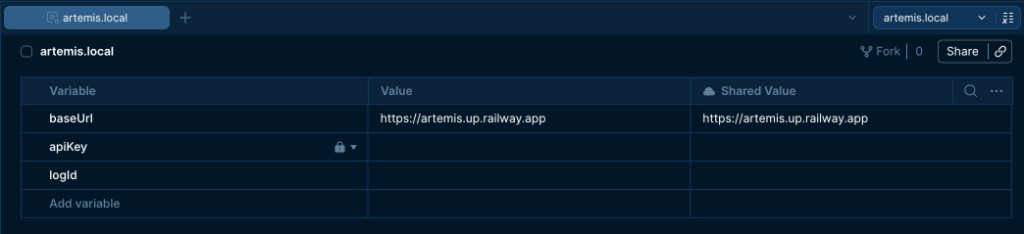
Why this step trips people up: For baseUrl, a value only in Value stays on your machine. Shared Value syncs to the Postman cloud — that's what LiftOff can read for non-secret config. Filling the wrong column is the #1 reason this step fails validation.
Troubleshooting:
- Validation says
baseUrlis empty → the URL is missing from Shared Value. Copy it into that column, Save, wait a few seconds, then validate again. - Validation says the URL is wrong → it must be exactly
https://artemis.up.railway.app(no trailing slash, no typo). - Can't find Shared Value → use the column menu in step 2 above.