Connect a Postman API key to check your work
You do each step in Postman, then LiftOff uses your key to look at your workspace and confirm it's done. Connect once and it works for every module. Your key is saved in this browser and is only used to check your work in Postman.
With the model and Fraud API now routed through Fabric, connect the Banking and Support MCP servers. You will add and test each service independently, expose both through one MCP route, and then replace the agent's large initial catalogue of 104 tools with a governed Tool Search experience. Tool Search exposes three discovery tools that progressively disclose and execute the Banking and Support tools the agent actually needs.
The upstream MCP servers are already deployed. You do not need to build or run them locally.
Connect and Test Banking MCP
Create the Banking MCP connection, credential, and route
-
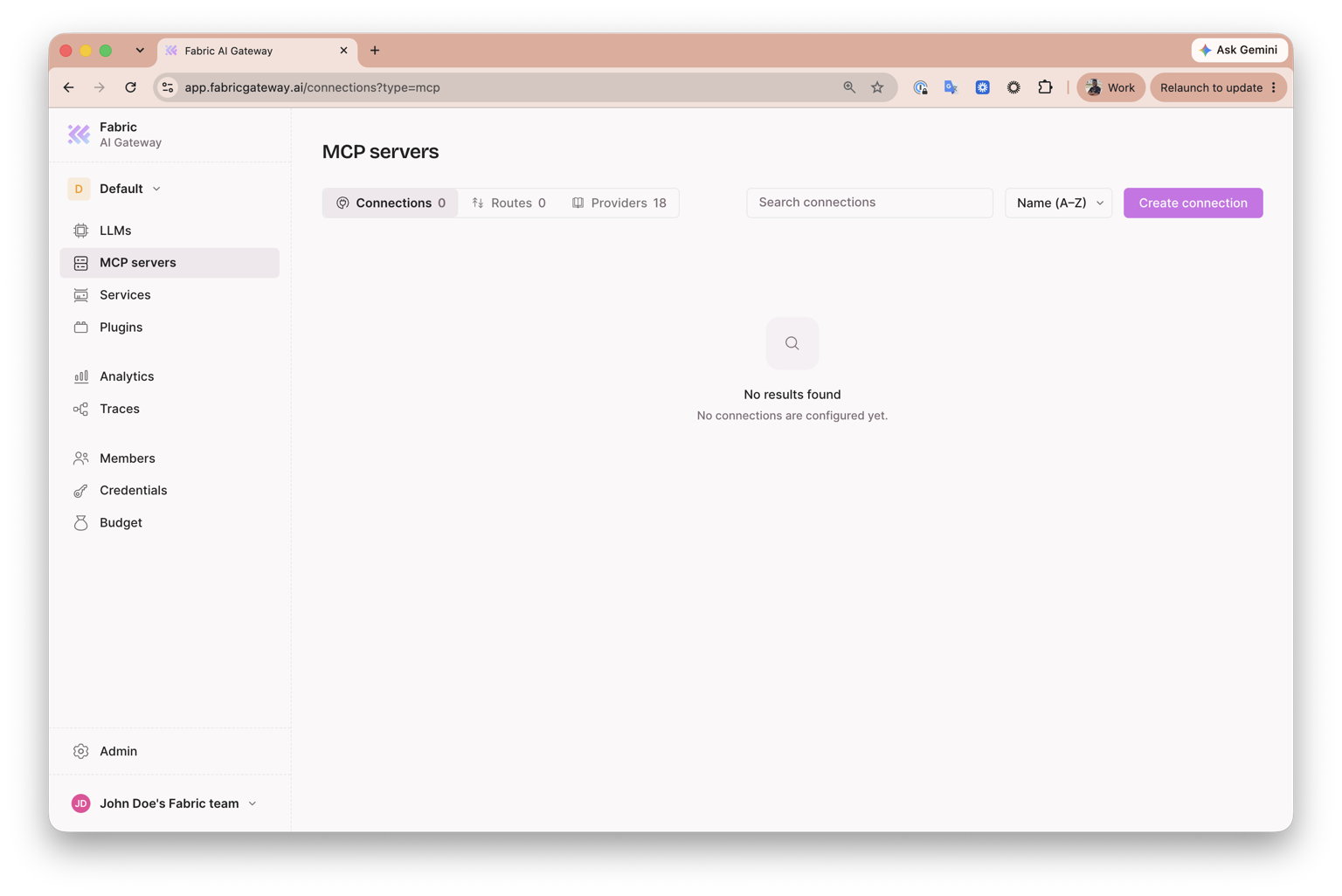
In Fabric's sidebar, click MCP servers. Confirm that Connections is selected, then click Create connection.
-
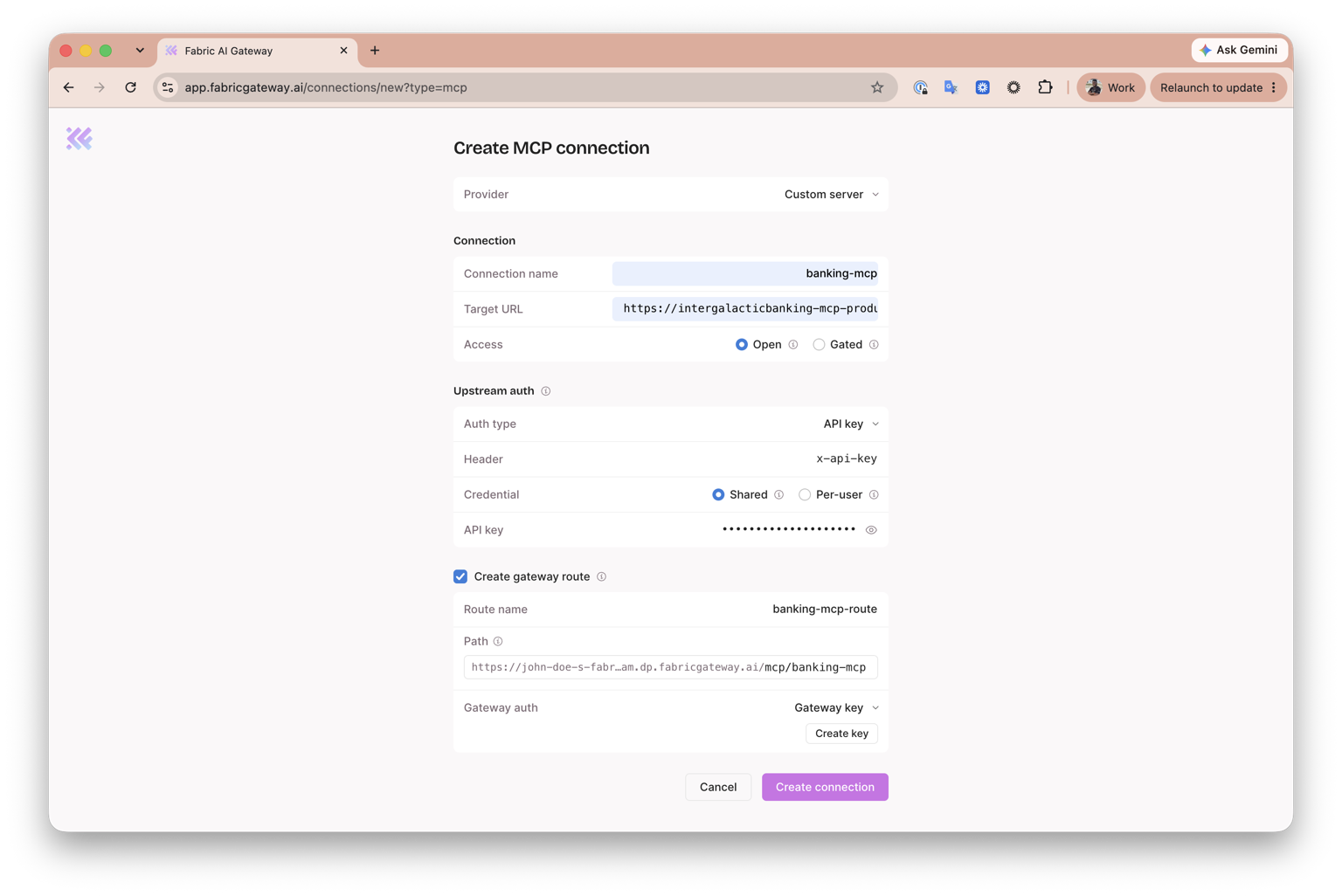
On Create MCP connection, leave Provider set to Custom server.
-
Under Connection, enter:
-
Connection name:
banking-mcp -
Target URL:
https://intergalacticbanking-mcp-production.up.railway.app/mcp -
Access: Open
-
-
Under Upstream auth, configure the shared credential that Fabric will send to the Banking MCP server:
-
Auth type: API key
-
Header:
x-api-key -
Credential: Shared
-
API key:
banking-mcp-demo-key
-
-
Turn on Create gateway route, then configure the route:
- Route name:
banking-mcp-route - Path: confirm that the generated URL ends in
/mcp/banking-mcp - Gateway auth: No gateway auth
No gateway auth keeps this workshop route public, so callers do not need to send a gateway credential.
- Route name:
-
Click Create connection. Fabric creates the MCP connection and route together, and stores the upstream API key in its managed vault.
Test the Banking route
- Open MCP servers → Routes. From the
banking-mcp-routeroute, copy its complete DP URL, including/mcp/banking-mcp. - In Postman, select the Fabric Gateway environment, set
bankingMCPBaseUrlto the copied URL, and save the environment. - Open the forked MCP collection, select Banking API MCP, and connect to the server. Under Tools, select 1. List owned accounts, then select Run.
- Confirm that the tool call succeeds and returns the customer's owned accounts. Because the route uses No gateway auth, the request does not require
X-Gateway-Key.
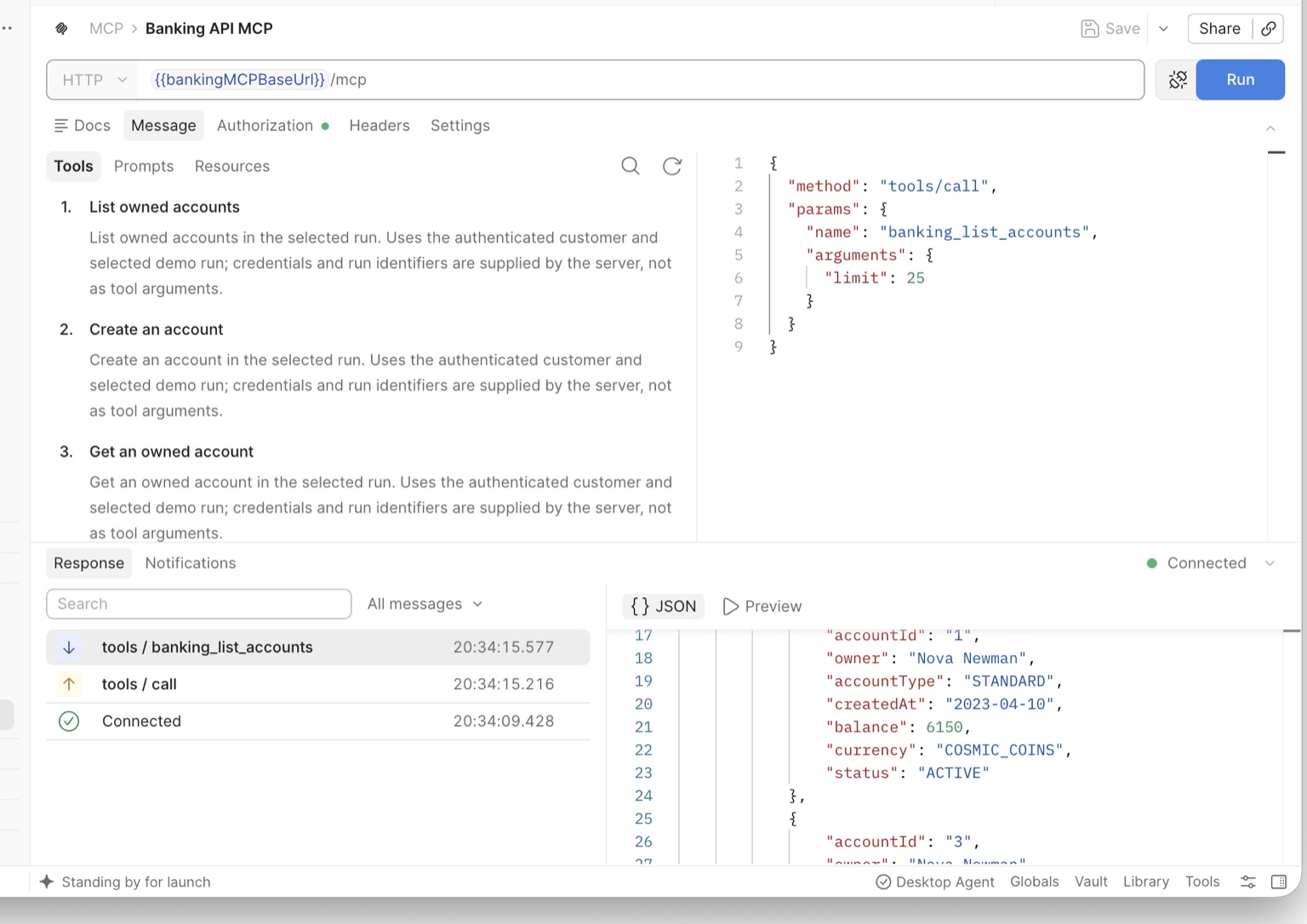
Expected outcome: Banking MCP works through its public /mcp/banking-mcp Fabric route, while its upstream API key remains stored in Fabric's vault.
Connect and Test Support MCP
This follows the same connection → public route → vaulted credential → Postman test workflow you completed for Banking MCP. Repeat those steps using the Support-specific values below.
| Setting | Support MCP value |
|---|---|
| Connection name | support-mcp |
| Upstream auth | Toggle on; Bearer; Org/tenant |
| Route name | support-mcp |
| Route path | /support |
| Route service | support-mcp |
| Gateway auth | No gateway auth |
| Credential type | Service credential |
| Credential display name | Support MCP Key |
| Postman variable | supportMCPBaseUrl |
Target URL
https://intergalacticsupport-mcp-production.up.railway.app/Credential token
support-mcp-demo-key- Under Gateway → MCP servers, create the
support-mcpresource with the target URL and Bearer requirement above, then select Add Resource. - Under MCP servers → Routes, expose that service at
/supportwith No gateway auth, then select Create route. - Under Administration → Credentials, create the Support service credential using the credential token above. Fabric stores this upstream token in its managed vault.
- Copy the route's full DP URL, including
/support, intosupportMCPBaseUrlin Postman's Fabric Gateway environment. - Open MCP → Support API MCP, connect to the server, and run Search support cases.
- Confirm that the search succeeds through Fabric and returns support-case results. Because this route is public, the request does not require
X-Gateway-Key.
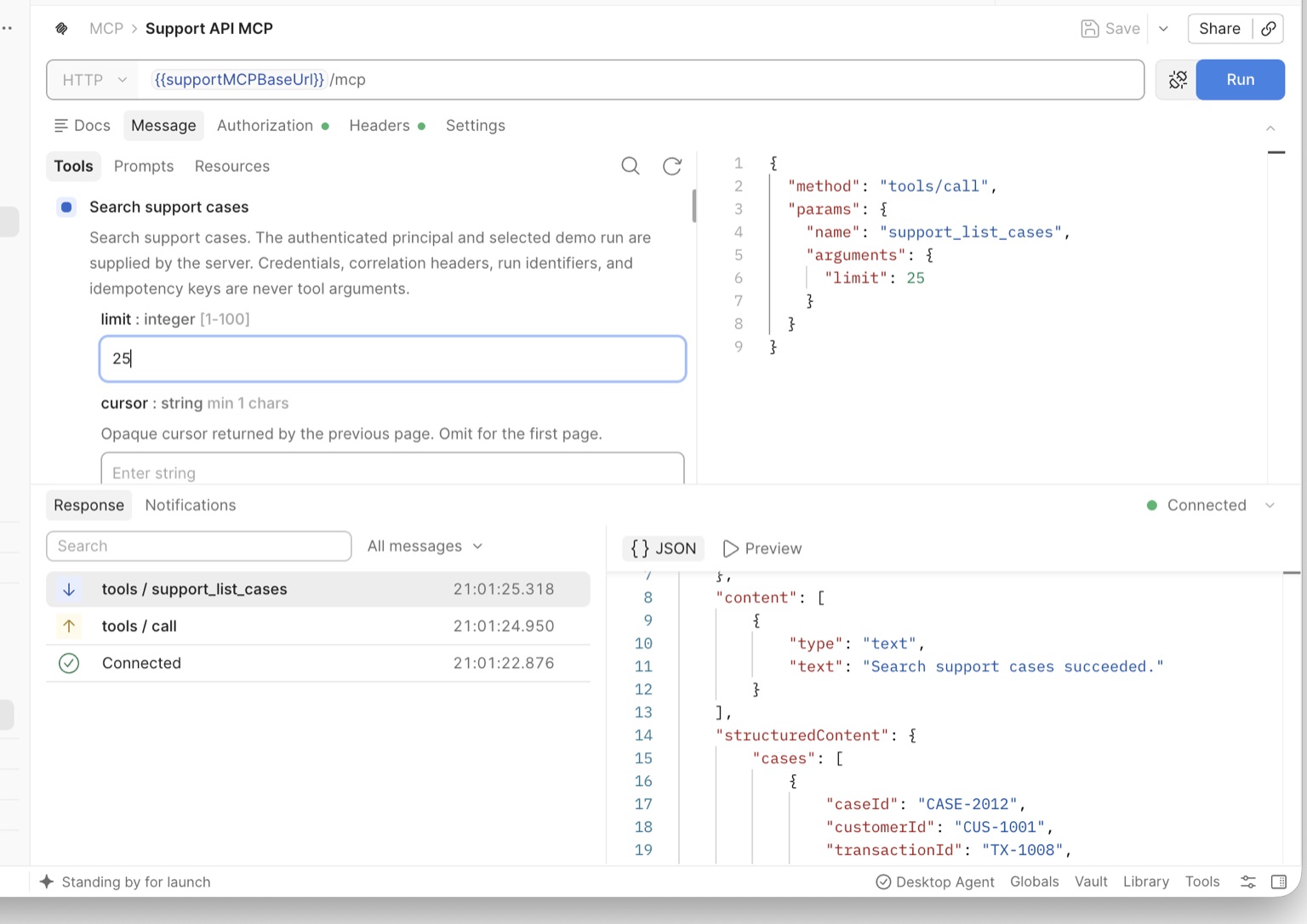
Expected outcome: Support MCP works through its public /support Fabric route, and its upstream credential is held in Fabric's vault.
Expose Both MCP Servers Through One Route
The support agent should not need to manage separate Banking and Support MCP connections. Fabric can expose both services through one client-facing MCP route.
- In Fabric's sidebar, click MCP servers. Click the Routes tab, then click Create route.
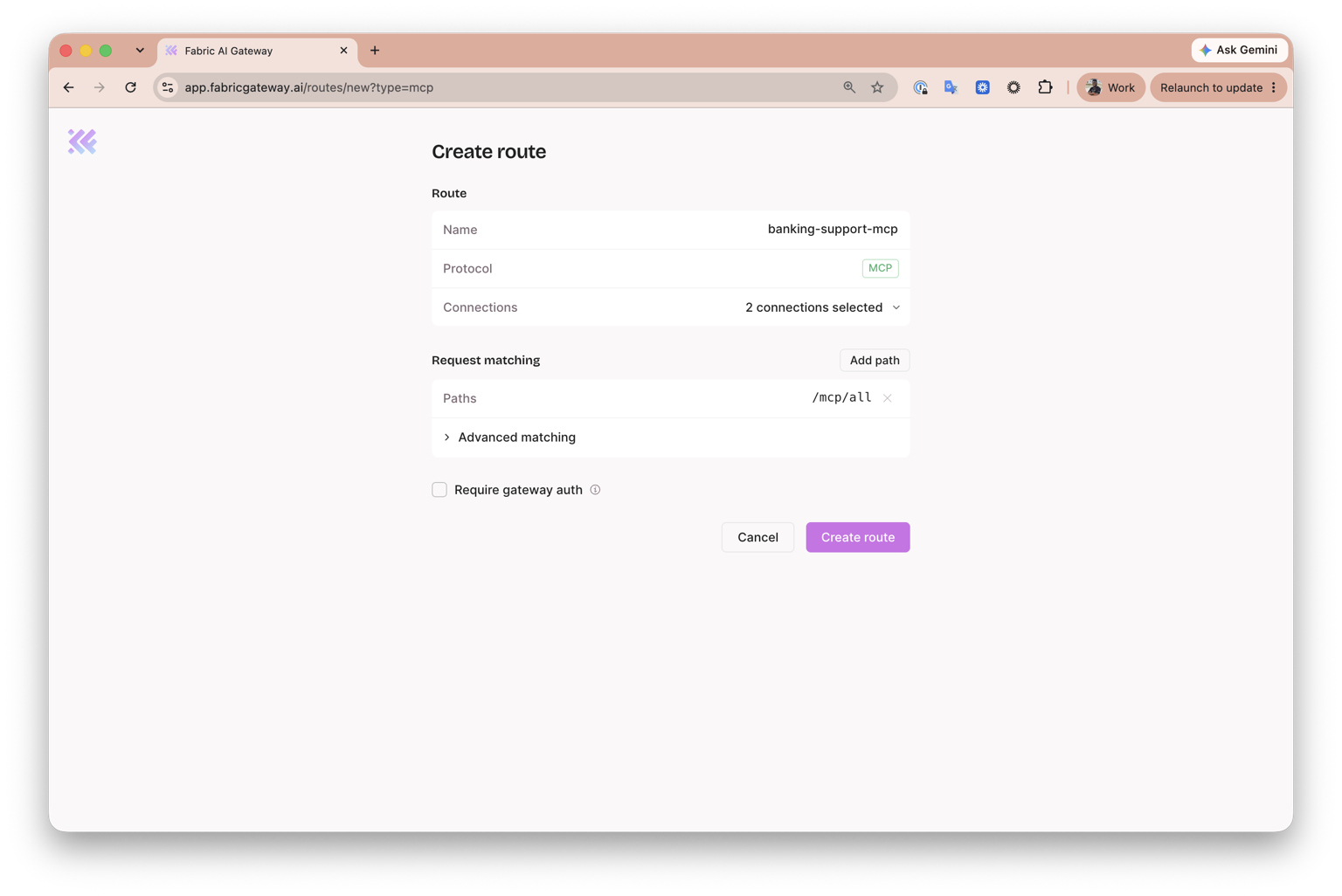
- Configure the combined route:
- Name:
banking-support-mcp - Protocol: confirm that Fabric sets this to MCP
- Connections: select both
banking-mcpandsupport-mcp; the field should show 2 connections selected - Path:
/mcp/all - Require gateway auth: leave this unchecked
- Name:
- Click Create route. Leaving Require gateway auth unchecked makes the combined route public, so callers do not need a gateway credential.
-
Open the combined route's ellipsis menu and select Copy DP URL. Keep the complete URL, including
/mcp/all. -
In Postman's Fabric Gateway environment, confirm that
allMCPBaseUrlcontains this URL and save the environment. -
In the cloned support-agent project's
.env, paste the same URL asFABRIC_MCP_URL:FABRIC_MCP_URL=YOUR_COMBINED_MCP_DP_URL -
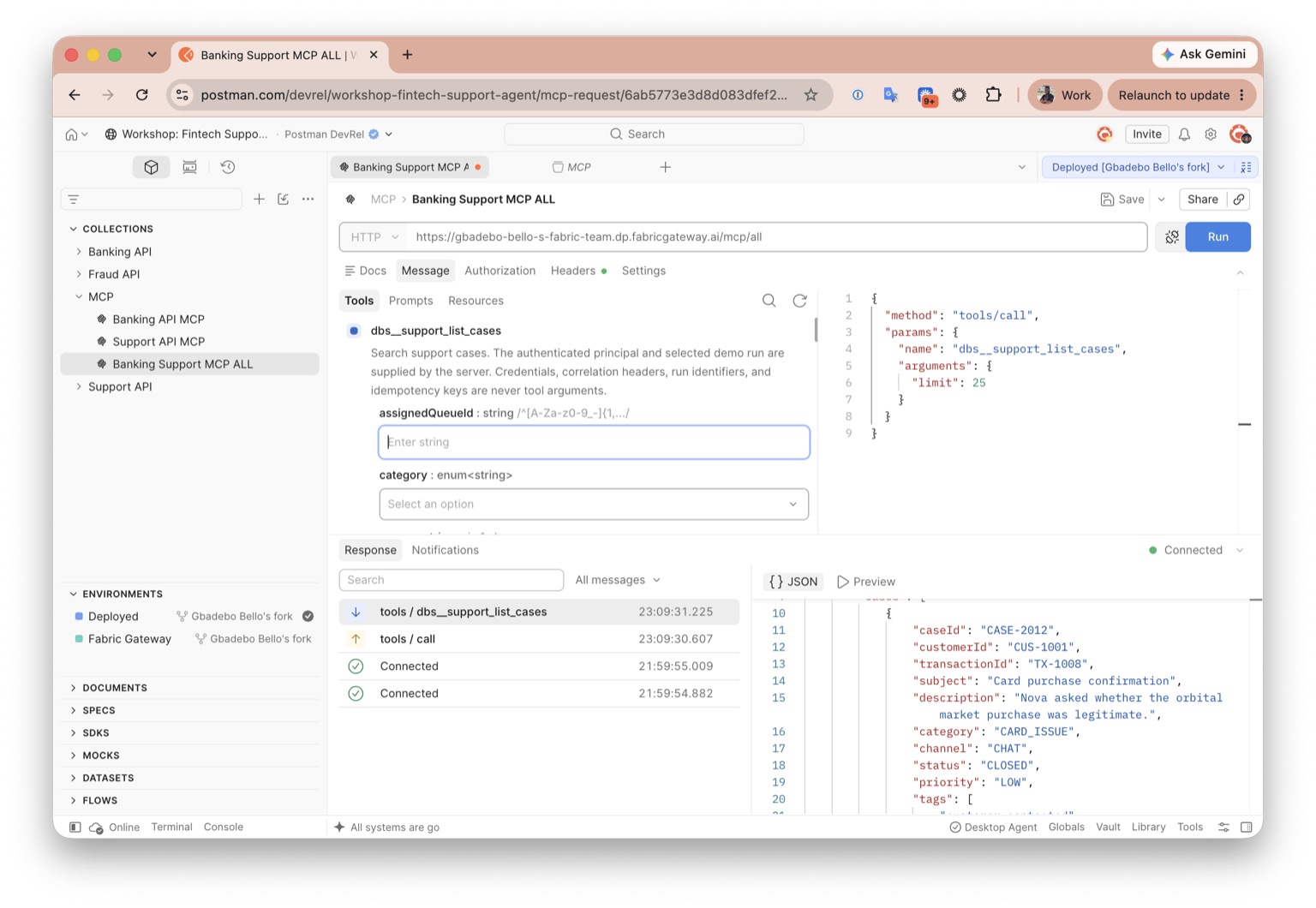
In Postman's MCP collection, open Banking Support MCP ALL and start a new session.
-
Send List all tools. Before Tool Search is enabled, the route should expose tools from both upstream services—50 Banking tools and 53 Support tools.
<route-prefix>__<tool_name>. For example, the screenshot below shows dbs__support_list_cases.- Select any tool you would like to try, provide its required inputs, and run it. Confirm that the tool returns a successful response through the combined route.
-
Return to the terminal for the cloned support-agent project. Stop the development server if it is still running, then restart it so it loads your latest
.envvalues:npm run dev -
Open
http://127.0.0.1:4173, choose any supplied query, and select Run comparison. -
Compare the initial tool count for both lanes. At this point, Direct and Fabric Gateway should each show 104 tools: 50 Banking tools, 53 Support tools, and one Fraud function.
The combined Fabric route is working, but it still sends the same large tool catalogue to the model as the Direct route. That consumes unnecessary context on every model turn. In the next step, you will improve this by enabling Tool Search.
Expected outcome: One Fabric MCP URL exposes all 103 Banking and Support tools and can successfully call either upstream service. The local comparison runs through both lanes, with each initially exposing 104 tools.
If you are stuck: Start a new MCP session after changing a route or environment value. MCP clients cache their initialized session and tool catalogue.
Enable Tool Search
Your comparison showed that both lanes currently begin with 104 tools. Sending every complete definition to the model consumes a large amount of context. The governed Tool Search plugin replaces Fabric's 103 MCP definitions with three discovery tools—search_tool, get_tool, and execute_tool—which progressively disclose and invoke the underlying capabilities only when the agent needs them. The separate Fraud function remains available, bringing the Fabric agent's initial total to four tools.
-
In Fabric's sidebar, click Plugins.
-
Search for
tool, find Tool Search, then click Use.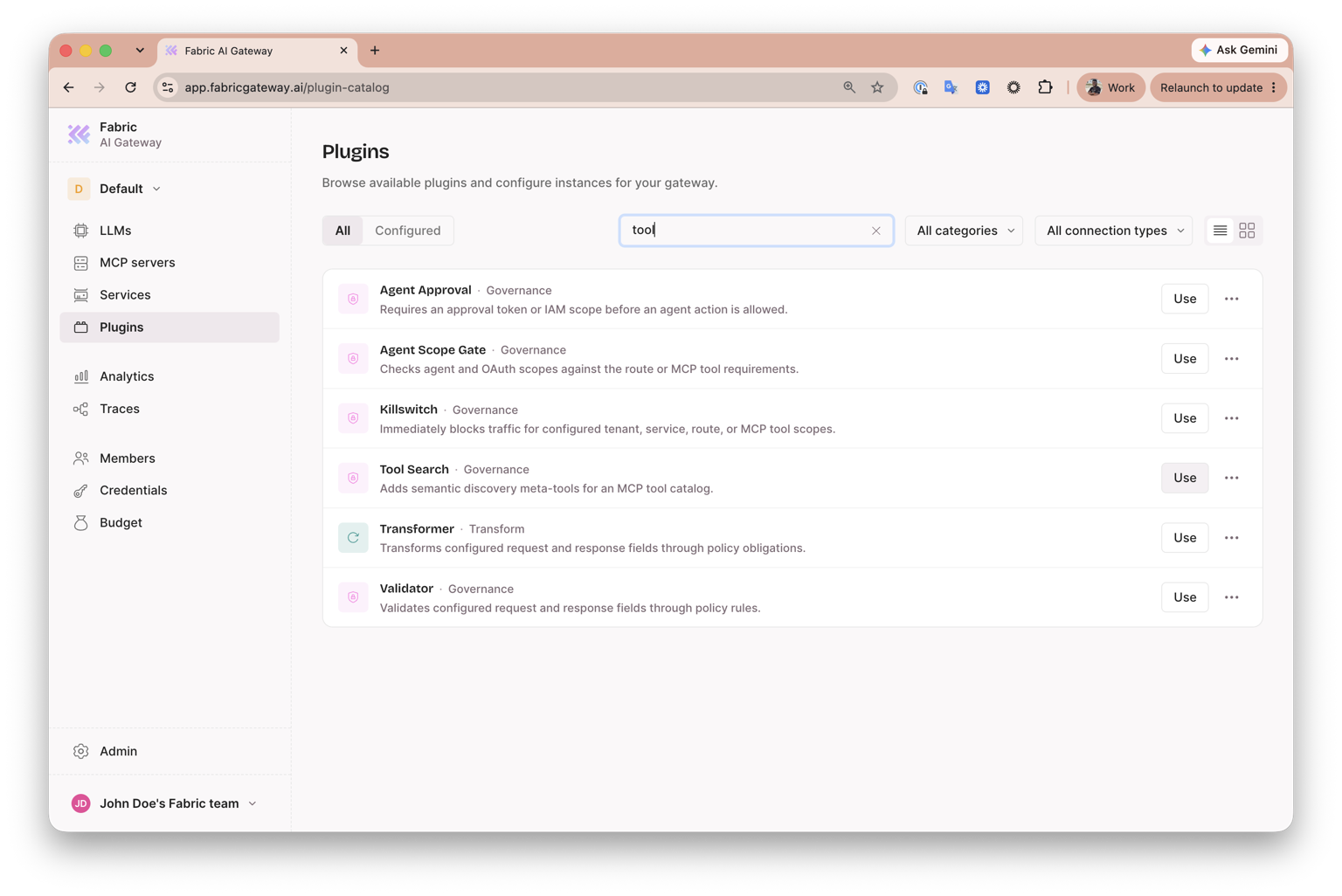
-
On New plugin instance, enter the unique name
banking-support-tool-search. Confirm that Plugin is set totool-search. Plugin-instance names cannot be changed after creation. -
Under Scope, leave Scope kind set to global.
-
Under Configuration, click Edit as JSON.
-
Replace the existing configuration with the following JSON:
body.json 10 lines{"embedder": {"base_url": "https://api.openai.com/v1","dimension": 384,"max_batch": 32,"model": "text-embedding-3-small","provider": "openai"},"result_limit_default": 3}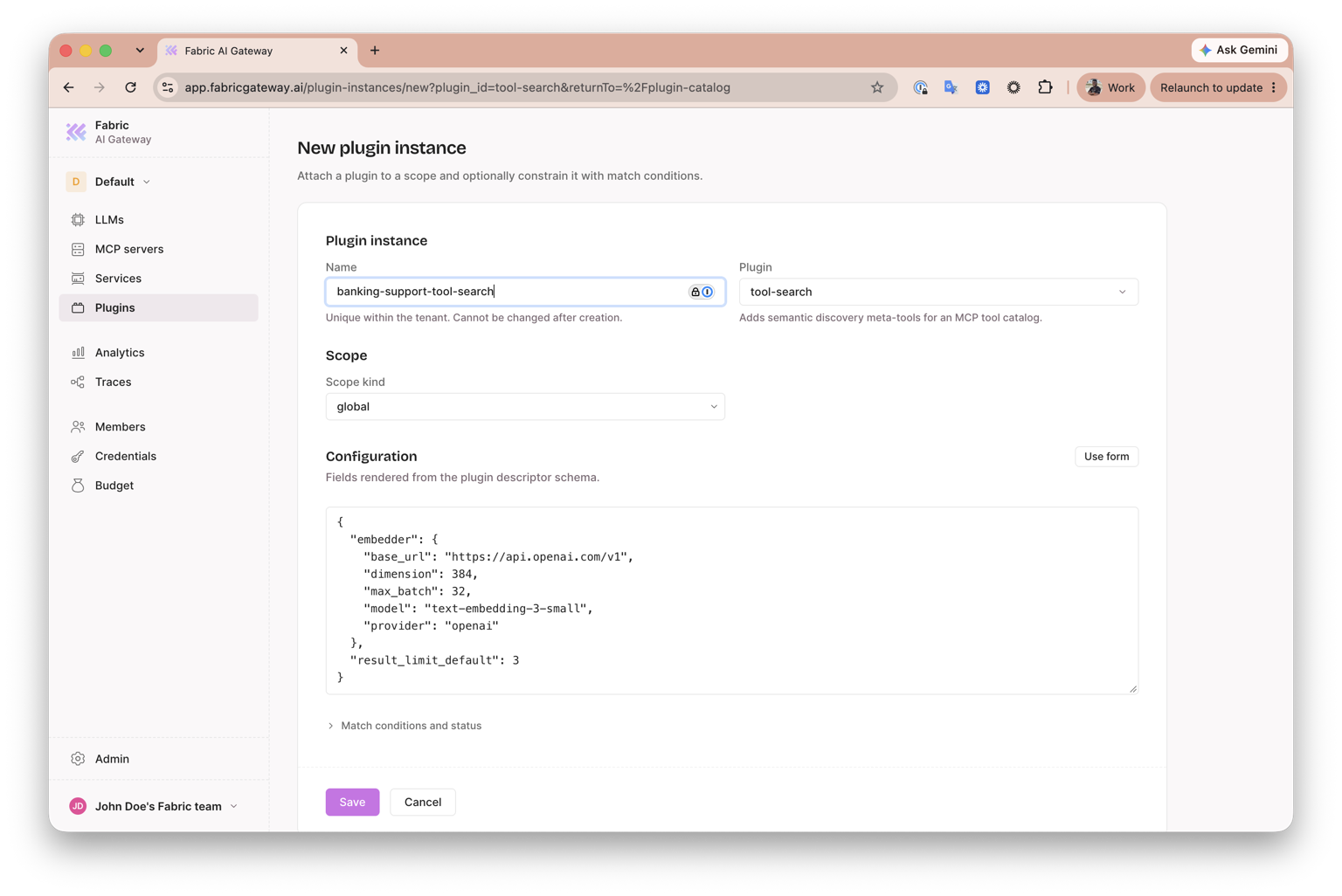
-
Click Use form to return to the form view.
-
Under Match conditions and status, leave the match conditions empty and confirm that Enabled is selected.
-
Click Save.
-
Return to Postman and open Banking Support MCP ALL. A new session is required so Postman receives the updated tool catalogue.
-
Connect to the MCP server in Postman. Instead of the 103 complete Banking and Support definitions, confirm that Fabric exposes exactly three governed discovery tools:
search_tool,get_tool, andexecute_tool. -
Send Search for transaction investigation tools and confirm that the results include relevant Banking and Support capabilities.
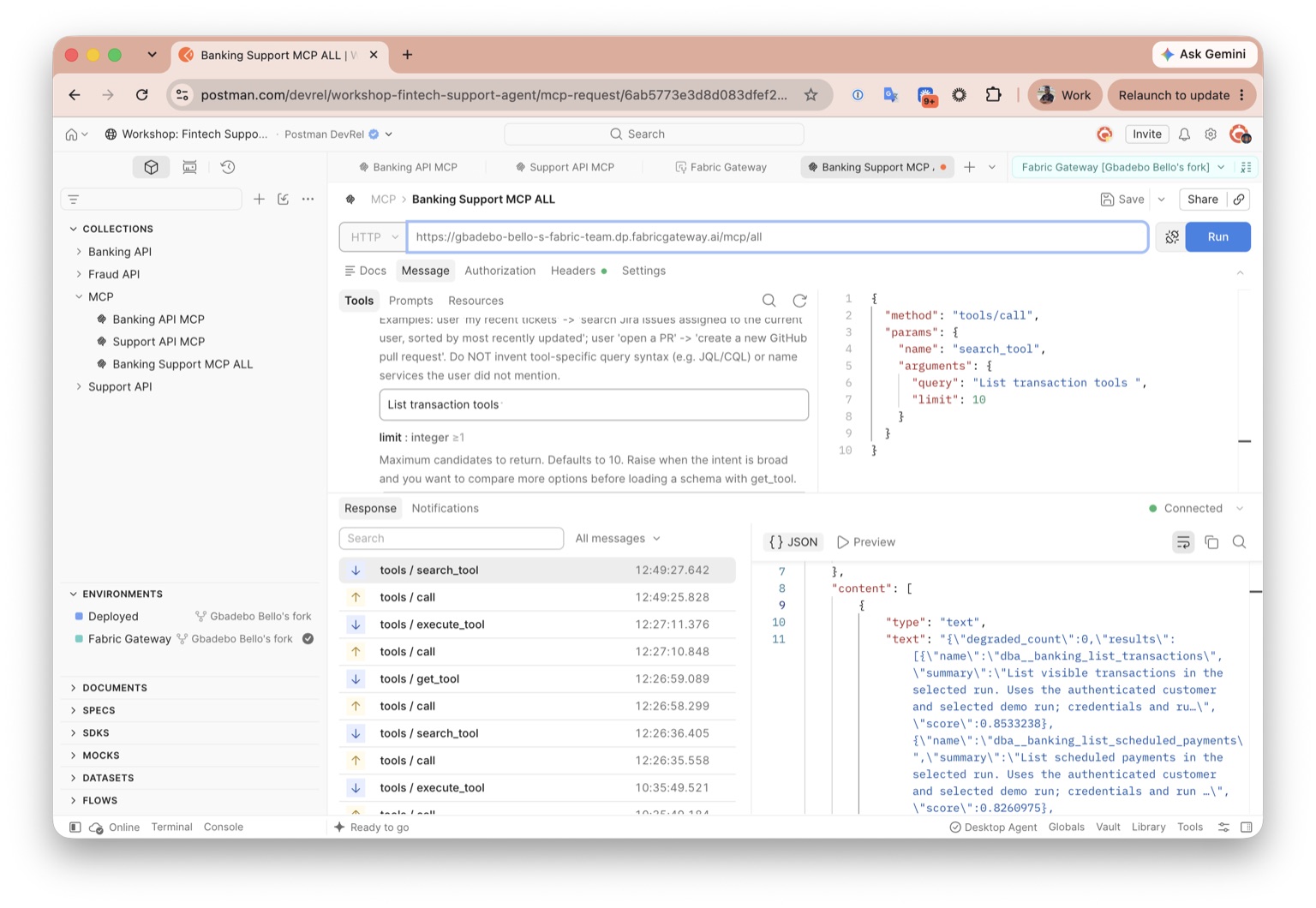
Expected outcome: The same combined MCP route still reaches both services, but Tool Search progressively discloses their capabilities through three governed tools. Together with the separate Fraud function, the Fabric lane now begins with four tools rather than 104.
search_tool, get_tool, and execute_tool, and runs search_tool through Fabric. No gateway key is required.